THE INTIMATE SESSION
Tiny Desk AIYour people. The reference action.
Upload your photos together and direct your own Tiny Desk AI story with an editable prompt. Or use Motion Transfer to bind photos to the reference roles.
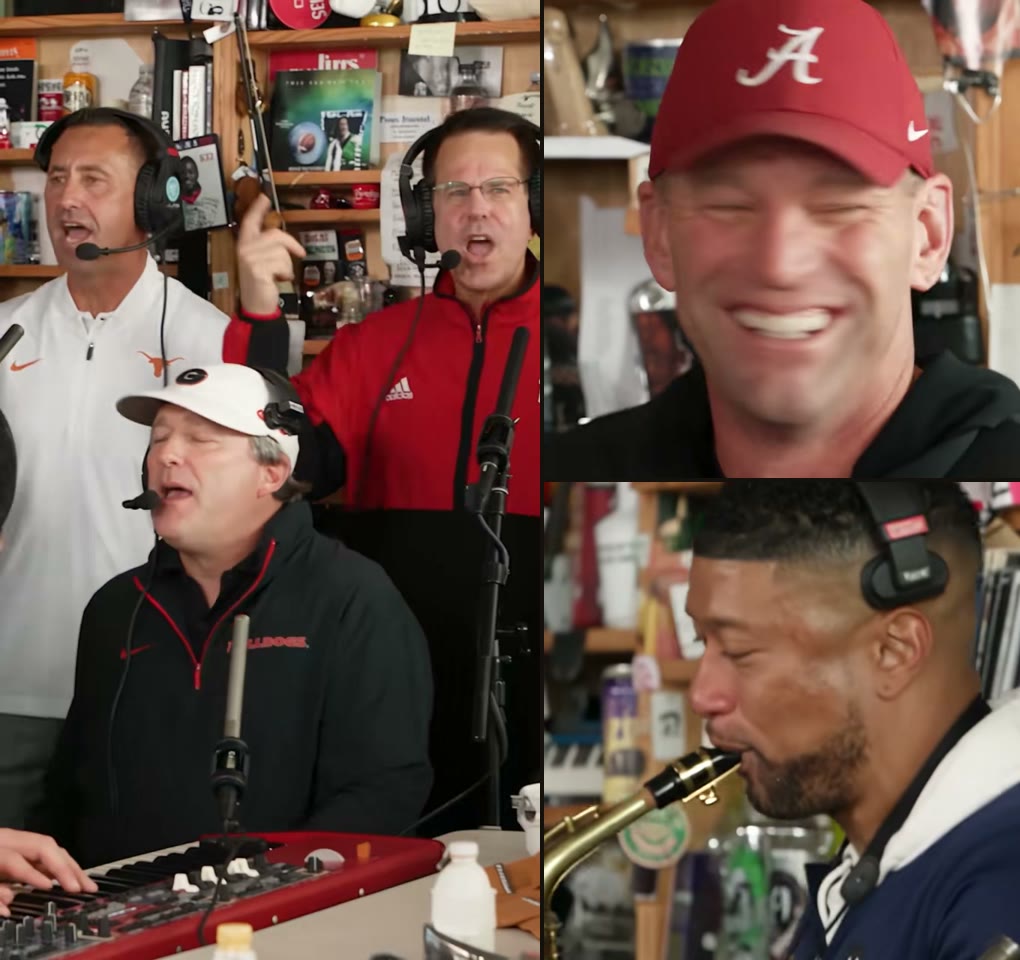
Replace 1–5 people. One clear portrait per selected role. Optional roles you keep use the original reference person. Background images are separate.
View your recent videos ↓Example videos
Existing Tiny Desk standalone render · Lead replacement example, not a new hub generation.
Existing Tiny Desk standalone render · Full-band replacement example. Individual results vary.
KNOW THE SCENE
Reference & examples
Reference video
Watch the movements and camera framing used in Motion Transfer.
Example images & role frames
Shows where each person appears in the reference video.
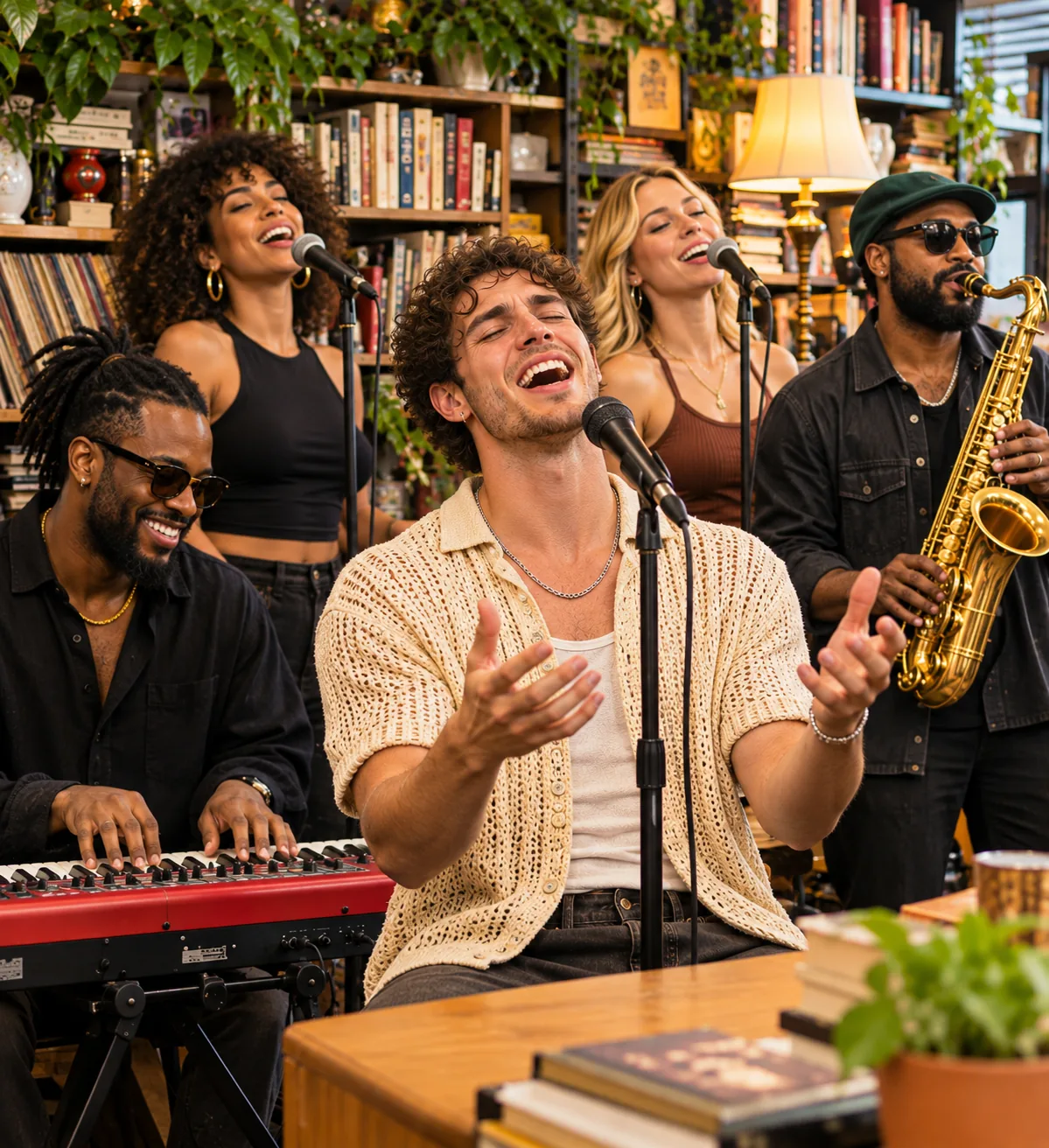
Template cover · Owner-provided artwork
FROM INPUT TO VIDEO
How to create your video
Choose 1–5 role photos. Empty roles keep the original reference person.
- 01
Create Your Story: review the keyword preset, edit its action, emotion, camera or setting, and upload the required portraits.
- 02
Motion Transfer: bind photos to the reference roles you want to replace. Their actions follow the source; choose the original setting, a written environment or a background photo.
- 03
Choose output settings, review the current credit price and confirm generation.
A SCENE WITH YOUR SIGNATURE
A little room. A whole different vibe.
Close-up energy, warm light and the feeling that everyone is in on the session. Start with the lead, invite a guest, and give your performance a setting that feels like you.
START WITH A LITTLE INSPIRATION
A few ways to make it yours.
Your inner headliner
Put yourself at the center of an intimate performance.
The unexpected guest
Give a consenting friend a place in your creative lineup.
A room of your own
Explore a rooftop set, a cozy studio or your own background.
PRACTICAL READING
Guides for Tiny Desk AI
How to replace one performer in a Tiny Desk AI video
Assign a portrait to one Tiny Desk role, keep the other performers original, and check your cast before generating.
Read guide ↗Tiny Desk AI scenes: original room, written setting or photo background
Choose the right Tiny Desk scene mode and separate background instructions from performer identity.
Read guide ↗Why Tiny Desk AI duration follows the reference performance
Understand reference-driven video length, resolution choices and credit pricing before creating a Tiny Desk remix.
Read guide ↗YOUR CREATIVE COLLECTION
Your recent videos
Your next story belongs here.
Finished videos and rendering progress appear here when you create. You can also find them in your account.
GOOD TO KNOW
A little clarity
before you create.
Questions about Tiny Desk AI
How are the two generation modes different?
Create Your Story accepts up to 10 reference photos through one multi-file uploader, matching the current model limit across all templates. A batch that would exceed 10 is refused in full while your existing photos stay unchanged. At capacity, remove a photo before adding more. Older oversized drafts are retained for recovery and must be reduced before generation; no photos are silently discarded. Motion Transfer keeps its separate reference-role workflow.
Can I change the scene during Motion Transfer?
Yes. Keep the reference setting, describe another place or upload a background image when the template enables those options. The selected environment prompt changes the setting while the corresponding reference role actions remain the guide.
Why do I need to assign photos to named people?
Each photo supplies one identity. In Create Your Story, upload every required person. In Motion Transfer, only uploaded roles are replaced; blank roles keep the original reference person. Background images never automatically add people.
Is this a real recording?
No. Results are AI-generated and can vary. Use authorized photos of consenting adults and label shared videos as synthetic. New accounts start with 0 credits; no free trial is provided.
Can I use a different setting?
In Create Your Story, describe the setting you want in the prompt.
In Motion Transfer, you can keep the original setting or describe a new setting or add a background photo.
Is this a real recording?
No. These are synthetic creative videos. Use photos and reference materials you have permission to use, get consent from everyone depicted, and label the result as AI-generated when sharing.
A DIFFERENT IDEA IN MIND?
There's another scene for that.
Explore the template library ↗Independent creative tools. No affiliation with the artists, programs or venues suggested by template names.